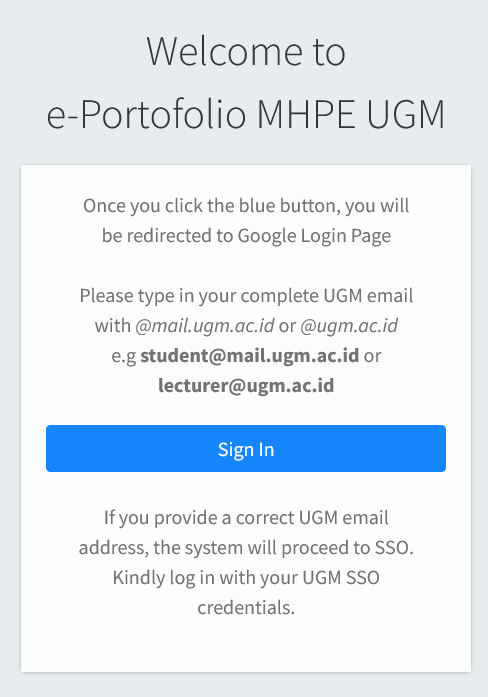
Step 1
Press the "Sign In" button
Step 2
Choose UGM-Google Account
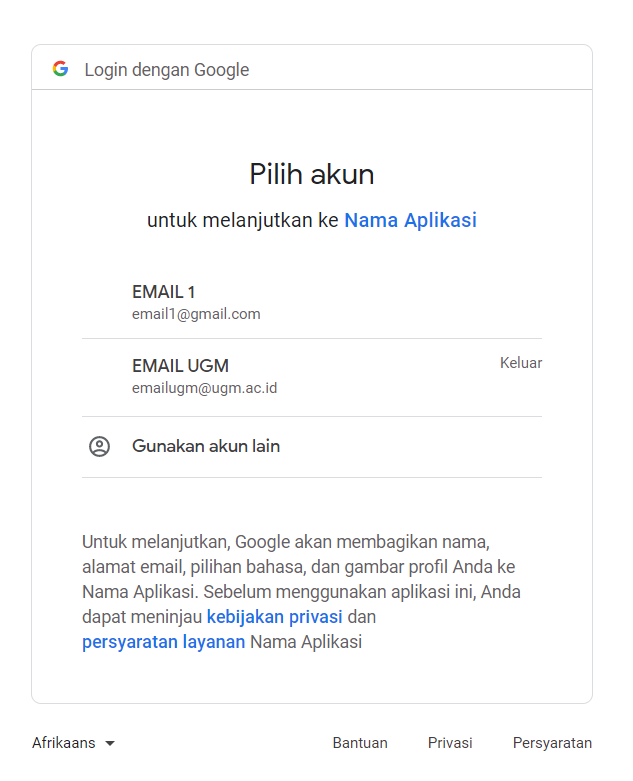
If your browser logged in with several account, choose one with UGM affiliated account.
Press "Use Another Account" and follow "Step 3" instructions if your UGM account is not listed.
Step 3
Login with UGM-Google Account
Proceed with login if your browser has not stored any UGM account.
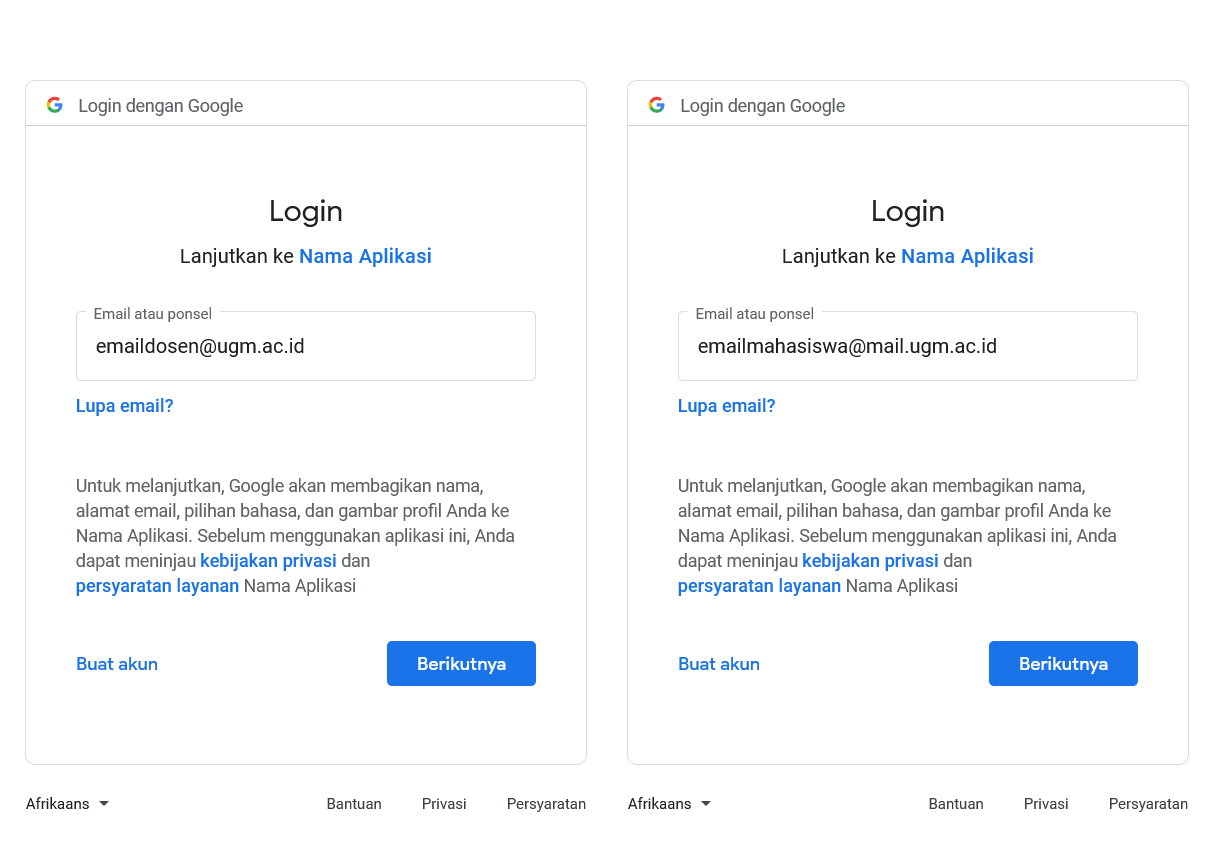
Type in full UGM email adrress lecturer@ugm.ac.id or student@mail.ugm.ac.id and press the button.
Step 4
Authenticate with SSO UGM
The system will redirect you to SSO UGM page.
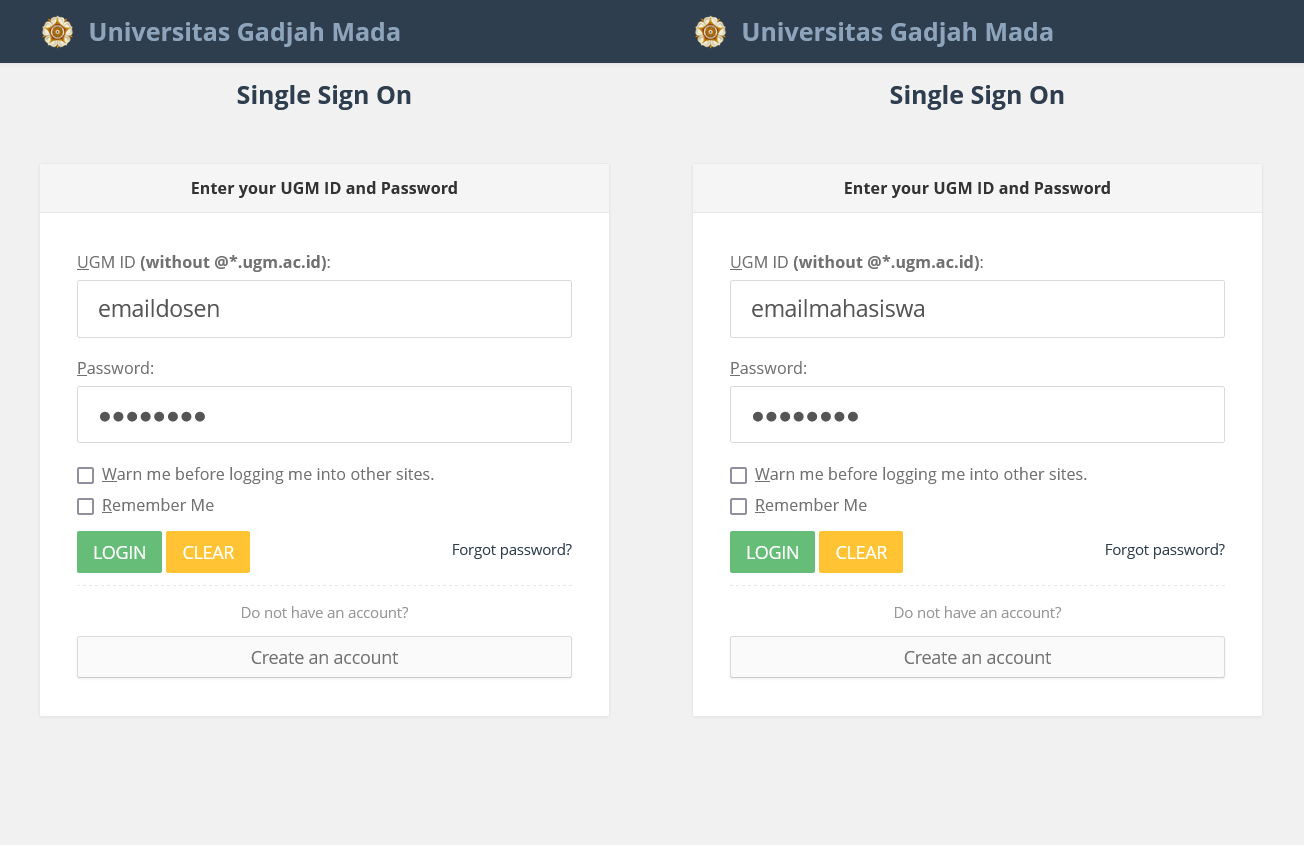
Input username without @ugm.ac.id or @mail.ugm.ac.id and your password. Automatic login will occur when your session is active.
Succesfull login leads to the system homepage.
Forgotten password could be recovered by clicking"Forgot Password?" text
Step 5
Change your SSO password via Simaster
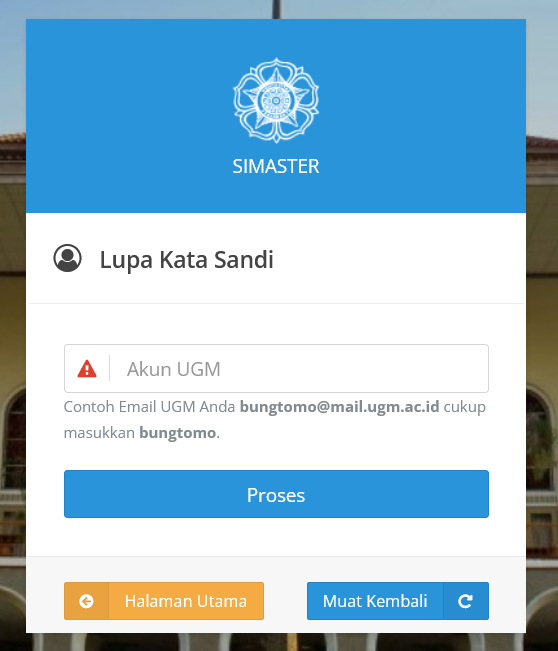
Kindly note that changing SSO password affect your connected UGM services (including UGM Email, Zoom, Gamel, eLOK). Return to "Step 2" once you have updated your SSO password to login to the system.